

Estimated time: 5-10 minutes. You will need access to your Hexagate dashboard and Clarion workspace.
The Clarion integration wizard generates the webhook URL for you. Keep the wizard open alongside your Hexagate dashboard.
Prerequisites
- Access to your Hexagate dashboard with permissions to manage Monitors
- A Clarion workspace with the Hexagate integration wizard open
Part 1: Get the Webhook URL from Clarion
Step 1 — Open the Clarion integration wizard
- In Clarion, go to Integrations
- Navigate to Hexagate and start the setup wizard
- Copy the Webhook URL generated by Clarion — you will need this in the next steps
Part 2: Add the Webhook to a Hexagate Monitor
Step 2 — Open Hexagate and navigate to your Monitors
- Log in to your Hexagate dashboard
- Navigate to Monitors
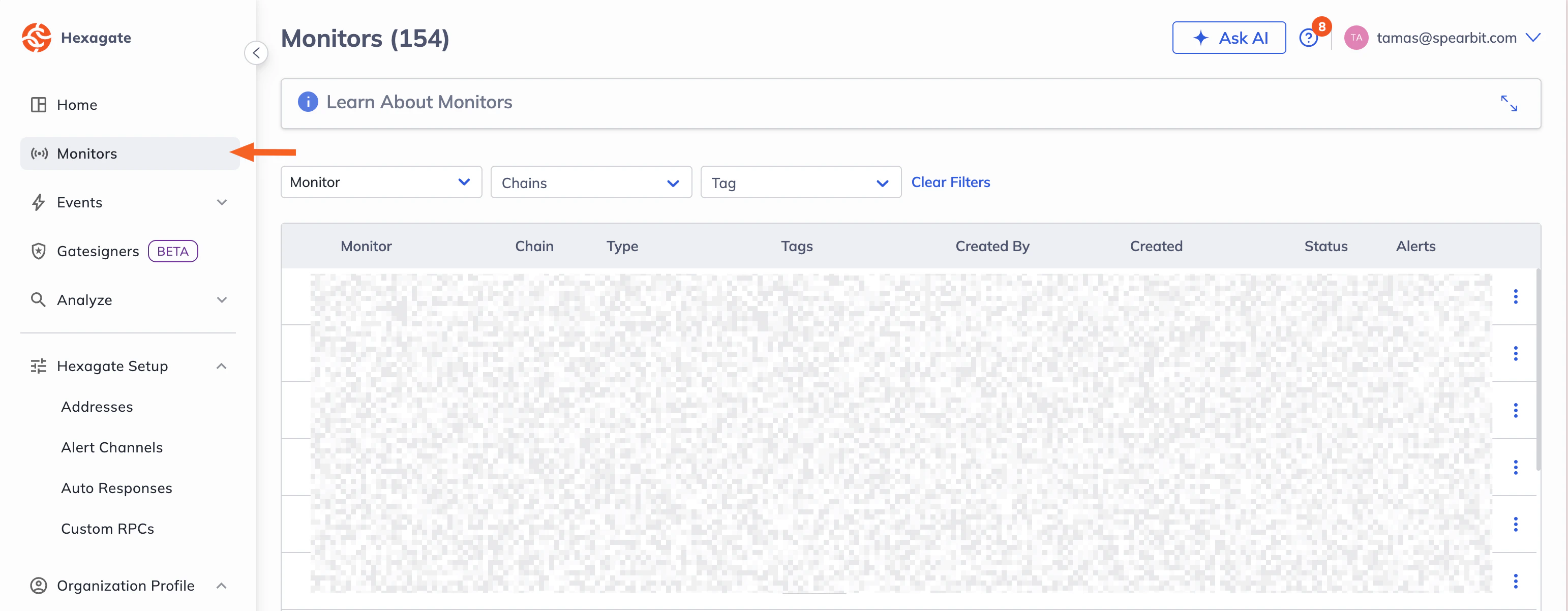
Step 3 — Open a monitor you want to connect
- Select one of your existing monitors
- Navigate to the Actions step within the monitor configuration
Step 4 — Add the Clarion webhook channel
- Click Add a new channel
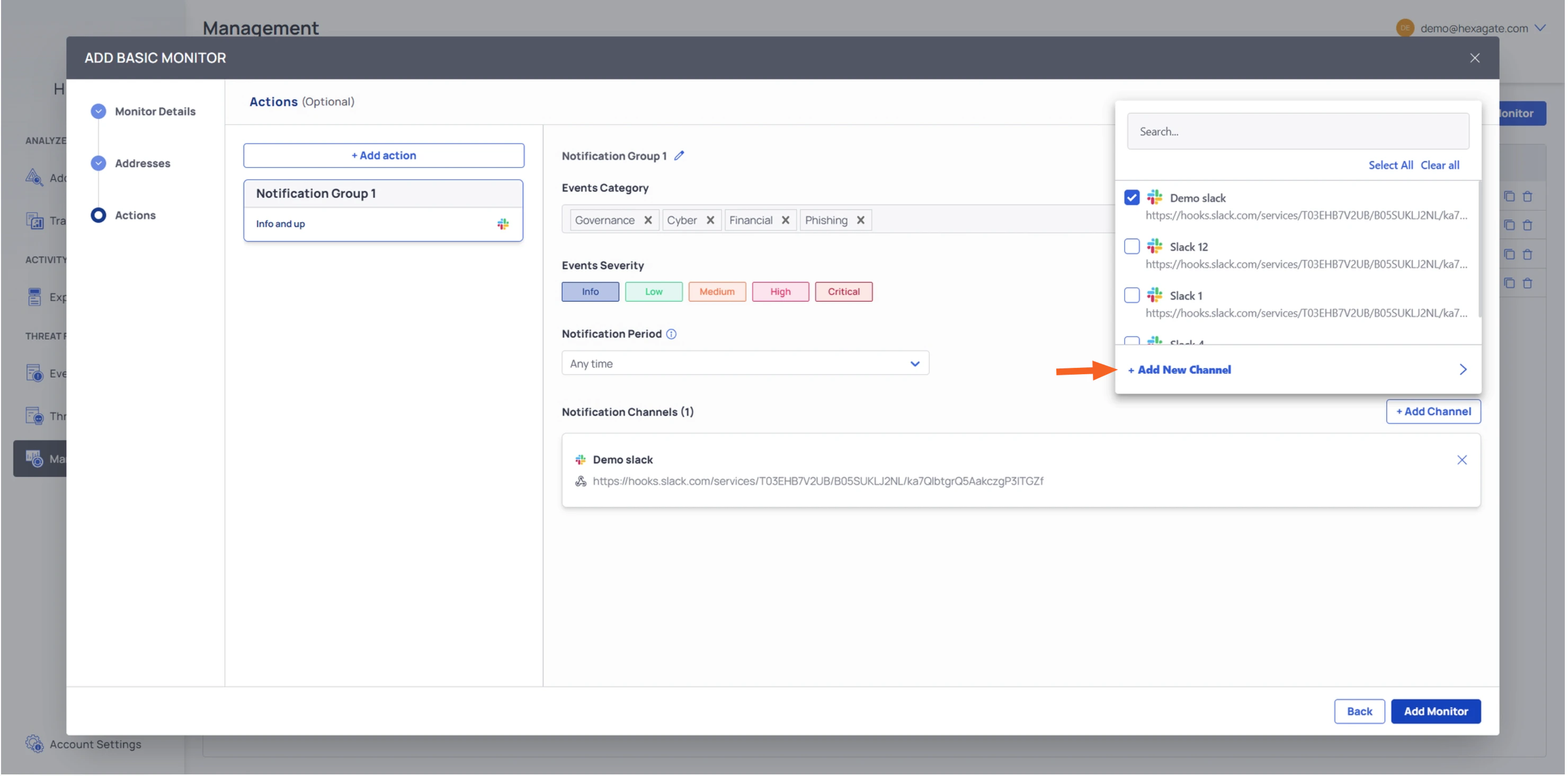
- Select Webhooks as the channel type
- Paste the Webhook URL you copied from the Clarion wizard
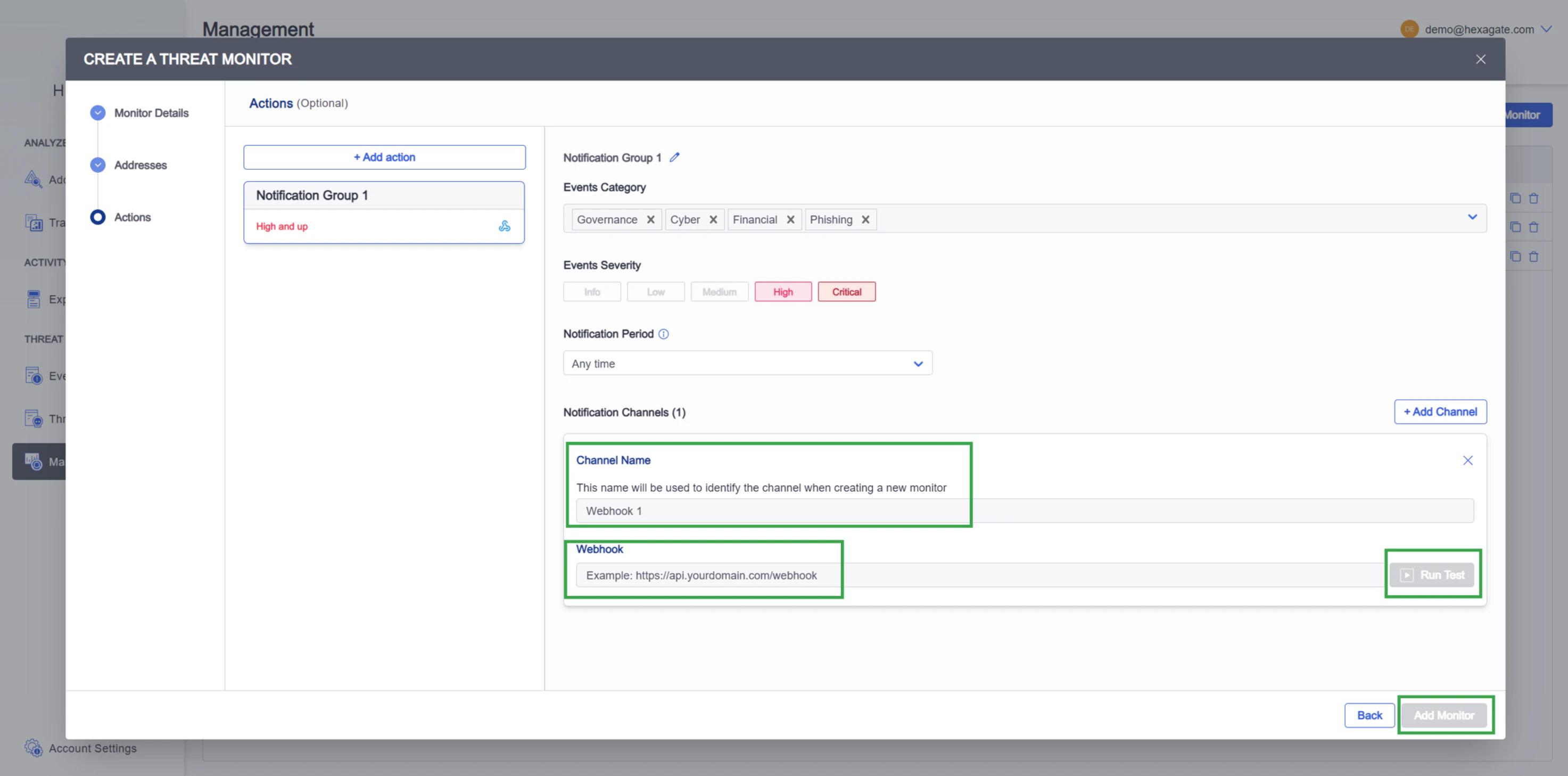
- Add it to the monitor
Part 3: Assign the Webhook to Additional Monitors
Step 5 — Repeat for each monitor
- For every additional monitor you want to send alerts to Clarion, open the monitor and navigate to Actions
- Select the Clarion webhook you created in Step 4 from the available channels
- Save the monitor
You only need to create the webhook channel once. After that, you can select it from the channel list on any monitor.
What happens next
Once configured, Clarion will automatically:- Receive alerts from Hexagate in real time via the webhook
- Analyze and triage incoming monitor events using AI agents
- Surface actionable insights and recommended responses