

Setup Options
There are two ways to set up the integration: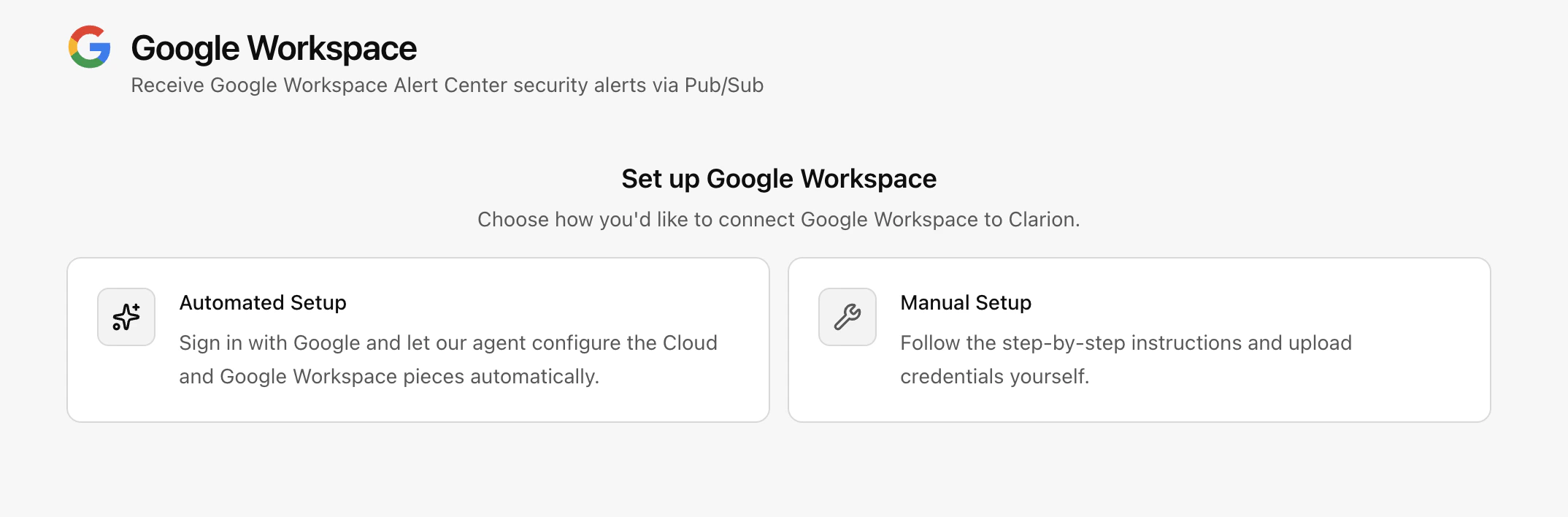
- Automated Setup — Navigate to the Integrations section and use the automated setup flow. This requires an existing GCP project and admin permissions.
- Manual Setup — Follow the step-by-step instructions below to configure the integration manually.
- GCP Project & Service Account (shared prerequisite)
- Alert Center > Pub/Sub > Clarion webhook (inbound alerts)
- Admin SDK agent tools (optional — user lookup, suspend, revoke tokens, etc.)
Estimated time: 20-30 minutes. You will need GCP Project Admin access and Google Workspace Super Admin access.
Part 1: GCP Project & Service Account
Step 1: Create a Google Cloud Project (or use existing)
- Go to Google Cloud Console
- Click the project selector dropdown at the top > New Project
- Enter a project name, select your organization > Create
- Note your Project ID (e.g.
clarion-workspace)
Step 2: Enable Required APIs
In APIs & Services > Library, search for and enable each of these:- Google Workspace Alert Center API (
alertcenter.googleapis.com) - Cloud Pub/Sub API (
pubsub.googleapis.com) - Gmail API (
gmail.googleapis.com) — required for email investigation agent tools
Step 3: Create a Service Account
- Go to IAM & Admin > Service Accounts > Create Service Account
- Name: e.g.
clarion-pubsub-push - Click Create and Continue > Done (no roles needed)
- Click the new service account > Keys tab > Add Key > Create new key > JSON
- Save the downloaded JSON file — you’ll need it for the Alert Center configuration script (Part 2) and optionally for Clarion Admin SDK credentials (Part 3)
- Note the service account email (e.g.
clarion-pubsub-push@your-project.iam.gserviceaccount.com)
Part 2: Inbound Alerts (Alert Center via Pub/Sub)
Step 1: Create a Pub/Sub Topic
- Go to Pub/Sub > Topics > Create Topic
- Name it (e.g.
clarion-alerts, full name:projects/YOUR_PROJECT/topics/clarion-alerts) - Click Create
- On the topic page, go to the Permissions tab > Grant Access
- Add principal:
alerts-api-push-notifications@system.gserviceaccount.com - Role: Pub/Sub Publisher
- Click Save
This is a Google-managed service account that the Alert Center uses internally to publish alerts into Pub/Sub. Without this permission, alert delivery to the topic will be rejected.
Step 2: Enable Domain-Wide Delegation
The Alert Center API is a Google Workspace API (not a standard GCP API), so configuring it requires domain-wide delegation. This same delegation is reused by Part 3 (Admin SDK tools) if you set that up later.- Go to IAM & Admin > Service Accounts and click the service account from Part 1
- Expand Advanced settings
- Under Domain-wide Delegation, click Edit and enable Google Workspace Domain-wide Delegation
- Note the Client ID (numeric, e.g.
107729743480716689292)
Step 3: Grant the Alert Center Scope in Google Workspace Admin Console
- Go to Google Workspace Admin Console as a Super Admin
- Navigate to Security > Access and data control > API controls
- Click Manage Domain Wide Delegation
- Click Add new
- Enter:
- Client ID: the numeric client ID from Step 2
- OAuth Scopes:
https://www.googleapis.com/auth/apps.alerts
- Click Authorize
Both sides are required. Enabling delegation on the service account (Cloud Console) says “I want to use delegation.” Authorizing the client ID with scopes (Admin Console) says “I allow this service account to use these scopes.” Both must be configured or delegation calls will fail with
unauthorized_client.Step 4: Configure Alert Center to Publish to Pub/Sub
There is no UI for this step — it requires the Alert Center API. Save the following asalert_setup.py and run it in Google Cloud Shell or locally:
/path/to/your-service-account-key.jsonwith the path to your service account JSON keyadmin@yourdomain.comwith your Super Admin emailYOUR_PROJECT_IDwith your Google Cloud project ID
Why not
gcloud CLI? The gcloud auth print-access-token command stamps tokens with the cloud-platform scope, which covers most Google Cloud APIs. But the Alert Center API is a Google Workspace API that requires the apps.alerts scope — and gcloud has no flag to request it. The Python script uses the same service account key but explicitly requests the correct scope.Step 5: Connect Clarion
- Open Clarion > Integrations > Google Workspace
- Select which alert severities to ingest
- Click Connect — this creates the integration
- Go to the Monitors tab and add a monitor — this generates the webhook URL
- Copy the webhook URL — you’ll need it for the next step
Step 6: Create a Pub/Sub Push Subscription
- Go to Pub/Sub > Subscriptions > Create Subscription
- Configure:
- Subscription ID: e.g.
clarion-alerts-push - Topic: select the topic from Step 1
- Delivery type: Push
- Endpoint URL: paste the webhook URL from Clarion
- Enable authentication: toggle on
- Service account: select the service account from Part 1
- Audience: leave blank (defaults to the endpoint URL, which matches Clarion’s OIDC audience)
- Message retention: 7 days (default)
- Acknowledgement deadline: 30 seconds
- Subscription ID: e.g.
- Click Create
If you get a permission error on the service account, grant your user the
iam.serviceAccounts.actAs permission on that service account.Step 7: Verify
- Check Admin Console > Security > Alert Center for existing alerts
- Verify alerts appear in Clarion — Pub/Sub will retry delivery if the webhook returns a non-2xx status
- Most security alerts (suspicious login, leaked password, phishing) are on by default. Custom alerts (DLP violations, activity rules) require additional rule configuration in the Admin Console.
Part 3: Admin SDK Agent Tools (Optional)
This enables Clarion’s AI agents to look up users, suspend accounts, revoke OAuth tokens, investigate emails, and more. It uses the same service account and delegation from Part 2 — you just need to add the Admin SDK and Gmail scopes.Step 1: Add Admin SDK and Gmail Scopes
- Go to Google Workspace Admin Console as a Super Admin
- Navigate to Security > Access and data control > API controls
- Click Manage Domain Wide Delegation
- Find the existing entry for your service account’s Client ID (added in Part 2, Step 2)
- Click Edit and update the OAuth Scopes to include all six (comma-separated, no spaces):
- Click Authorize
Gmail scopes:
gmail.readonly enables the agent to search and read emails during investigation. gmail.modify enables trashing malicious emails. Both scopes use domain-wide delegation to impersonate the affected user’s mailbox — the service account does not need direct mailbox access.Step 2: Upload Credentials in Clarion
- In the Clarion integration settings, go to the Agent Tools (Admin SDK) tab:
- Enter the Super Admin Email (e.g.
admin@yourdomain.com) — this is the account the service account will impersonate - Upload the JSON key file from Part 1, Step 3
- Enter the Super Admin Email (e.g.
- Click Save
Step 3: Verify
- When an alert comes in and triggers an agent, the agent should be able to use Google Workspace tools (user lookup, suspend, etc.)
- You can test by ensuring the service account can impersonate the admin: if credentials are wrong, agent tool calls will fail with auth errors
Troubleshooting
Request had insufficient authentication scopes
The token doesn’t include the required scope. This happens when using gcloud auth print-access-token for Workspace APIs. Use the Python script method (Part 2, Step 4) which explicitly requests the correct scope.
unauthorized_client: Client is unauthorized to retrieve access tokens using this method
Domain-wide delegation is not configured correctly. Verify both:
- Cloud Console: Service account has domain-wide delegation enabled (Advanced settings)
- Admin Console: Client ID is authorized with the required scopes (Security > API controls > Domain-wide Delegation)
Service account key creation is disabled
Your organization enforces iam.disableServiceAccountKeyCreation. See the note in Part 1, Step 3 for how to temporarily override this policy.
Google Workspace Alert Center API has not been used in project ... before or it is disabled
Enable the Alert Center API in APIs & Services > Library. Search for “Google Workspace Alert Center API” and click Enable.
Summary Checklist
| Task | Where |
|---|---|
| Create Google Cloud project | Google Cloud Console |
| Enable Alert Center + Pub/Sub + Gmail APIs | Google Cloud Console |
| Create service account with JSON key | Google Cloud Console |
| Create Pub/Sub topic with Alert Center publisher permission | Google Cloud Console |
| Enable domain-wide delegation on service account | Google Cloud Console (service account Advanced settings) |
Authorize apps.alerts scope in Admin Console | Google Workspace Admin Console |
| Configure Alert Center to publish to topic | Python script |
| Connect integration in Clarion + create monitor | Clarion UI |
| Create push subscription with OIDC auth | Google Cloud Console |
| (Optional) Add Admin SDK + Gmail scopes in Admin Console | Google Workspace Admin Console |
| (Optional) Upload service account credentials in Clarion | Clarion UI |